> ## Documentation Index
> Fetch the complete documentation index at: https://docs.reliantlabs.io/llms.txt
> Use this file to discover all available pages before exploring further.
# Automations
> Start workflow runs on a schedule, from a webhook, from an app event, or when another workflow finishes
An **automation** starts a run without anyone typing. "Every weekday at 9, review yesterday's failed CI runs." "When an issue is opened in `acme/shopfront`, triage it." "When the nightly workflow fails, open a follow-up." The run is an ordinary chat you can open afterwards, with the full transcript, so you can see exactly what the agent did.
 ## Declare, then activate
Automations have two halves, and keeping them apart is what makes a workflow shareable.
A workflow **declares when it should run** in a `triggers:` block of its YAML. The declaration says the source (a schedule, a webhook, an integration event, another workflow's outcome), an optional filter, and how the event's data becomes the workflow's inputs. Declaring a trigger fires nothing.
You then **activate** it, which says as whom and where: your account, a project, the [machine](/machines/overview) whose tools the run uses (or no machine), and, for an integration event, which connected account it listens through. In the app, a workflow's detail page lists its declared triggers with an **Activate** button. The activation re-reads the declaration every time it fires, so editing the workflow's `triggers:` block changes the automation. If you rename or remove the declaration, the activation is marked **broken** and fires nothing until you restore it.
```yaml theme={null}
name: issue-triage
description: Triage new GitHub issues and a weekday morning digest
entry: [triage]
inputs:
issue_number:
type: integer
default: 0
description: The issue to triage (set by the trigger)
triggers:
- name: new-issue
description: Triage each new issue as it is opened
integration:
integration: github
events: [issues.opened]
match:
repository: acme/shopfront
filter: "trigger.payload.data.issue.user.login != 'dependabot[bot]'"
inputs:
issue_number: "{{ trigger.payload.data.issue.number }}"
prompt: "Triage issue #{{ trigger.payload.data.issue.number }}"
- name: weekday-digest
description: Summarise open issues every weekday morning
schedule:
cron: ["0 9 * * 1-5"]
timezone: America/New_York
overlap: skip
nodes:
- id: triage
type: workflow
ref: builtin://agent
args:
model:
tags: [moderate]
```
Each entry has a unique `name` and exactly one source. The fields around the source are the same for every kind:
| Field | Purpose |
| - | - |
| `name` | Unique within the workflow; what an activation refers to |
| `description` | Shown to whoever chooses what to activate |
| `filter` | A [CEL](/reference/cel-expressions) expression over `trigger`; the event fires only if it is true. Not allowed on schedules |
| `inputs` | Sets workflow inputs from the event: input name to a template over `trigger` |
| `prompt` | The first message of the run, as a template over `trigger`. An activation's own message overrides it |
Inside templates and filters, `trigger.payload` is the event's data and `trigger.kind` says what fired. Unknown keys in a `triggers:` block are errors, not ignored: a mistyped `filtr:` would otherwise mean a trigger that fires on everything.
## The four kinds
| Kind | Fires when | Page |
| - | - | - |
| `schedule` | A cron time or interval arrives | [Schedules](/automations/schedules) |
| `webhook` | Something POSTs to the trigger's URL | [Webhooks](/automations/webhooks) |
| `integration` | A connected app reports an event | [Integrations](/integrations/overview) |
| `workflow_event` | A run of one of your workflows finishes, fails or blocks | [Workflow events](/automations/workflow-events) |
## Unattended by design
Nobody is watching an automation's run. The agent is told to decide and proceed rather than ask, questions and approvals resolve immediately with no answer instead of waiting, and a run that hits trouble records it rather than parking forever. Design workflows for this: give them everything they need in the prompt and inputs, and assume nothing can be clarified mid-run.
A workflow that should only ever start from its triggers, never from a chat, can set `automation_only: true`.
## Watching your automations
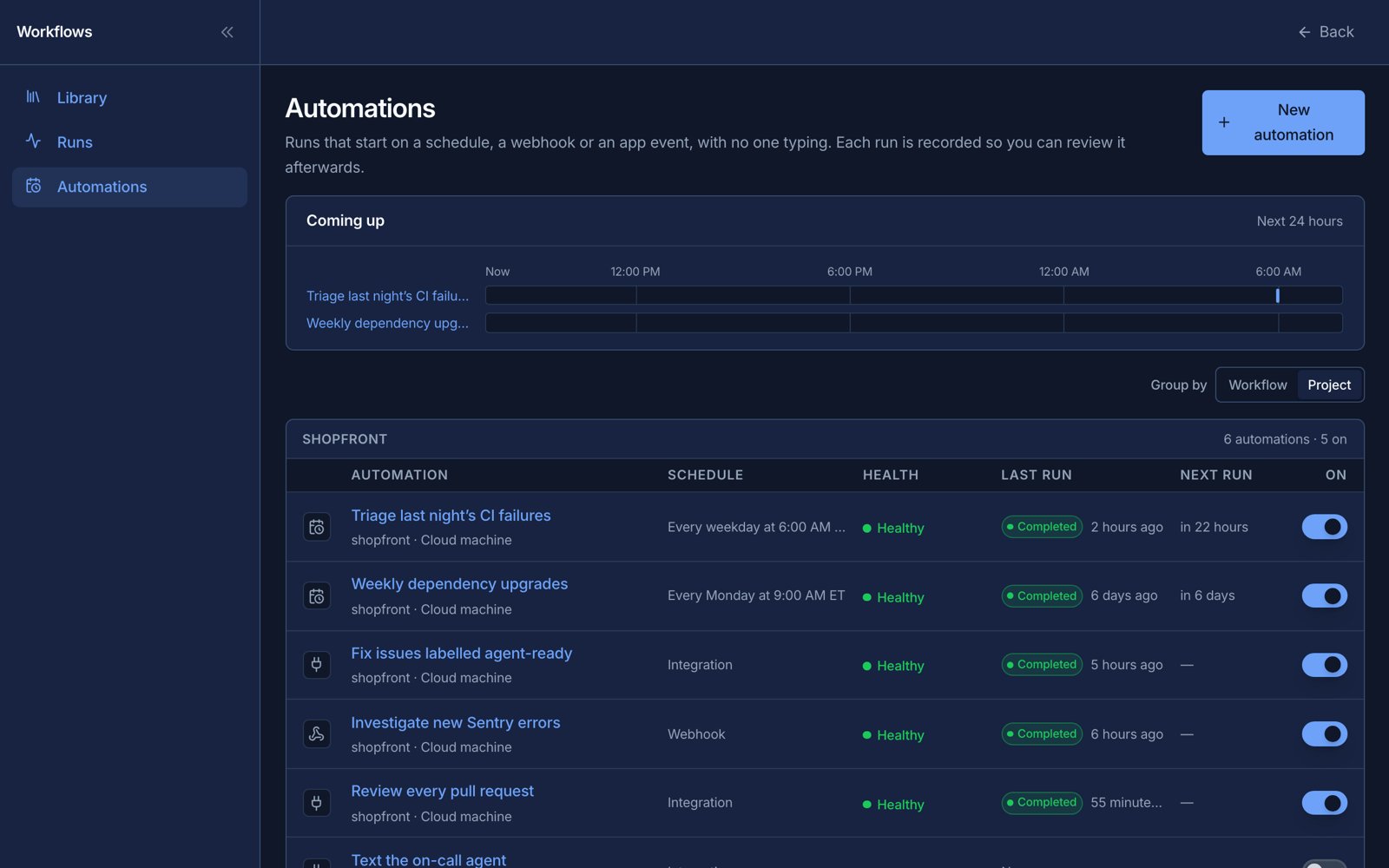
**Workflows → Automations** lists every automation across your projects, with a "coming up" timeline of the next 24 hours of scheduled runs and each automation's health, computed from its last ten firings:
| Health | Meaning |
| - | - |
| Healthy | No failure recently and at least one completed run |
| Degraded | A failure in the window, or three skipped scheduled fires in a row |
| Failing | The two most recent resolved firings both failed |
| Broken | The workflow it activates is gone, renamed its trigger, or changed kind |
| Unknown | Never fired, or nothing has resolved yet |
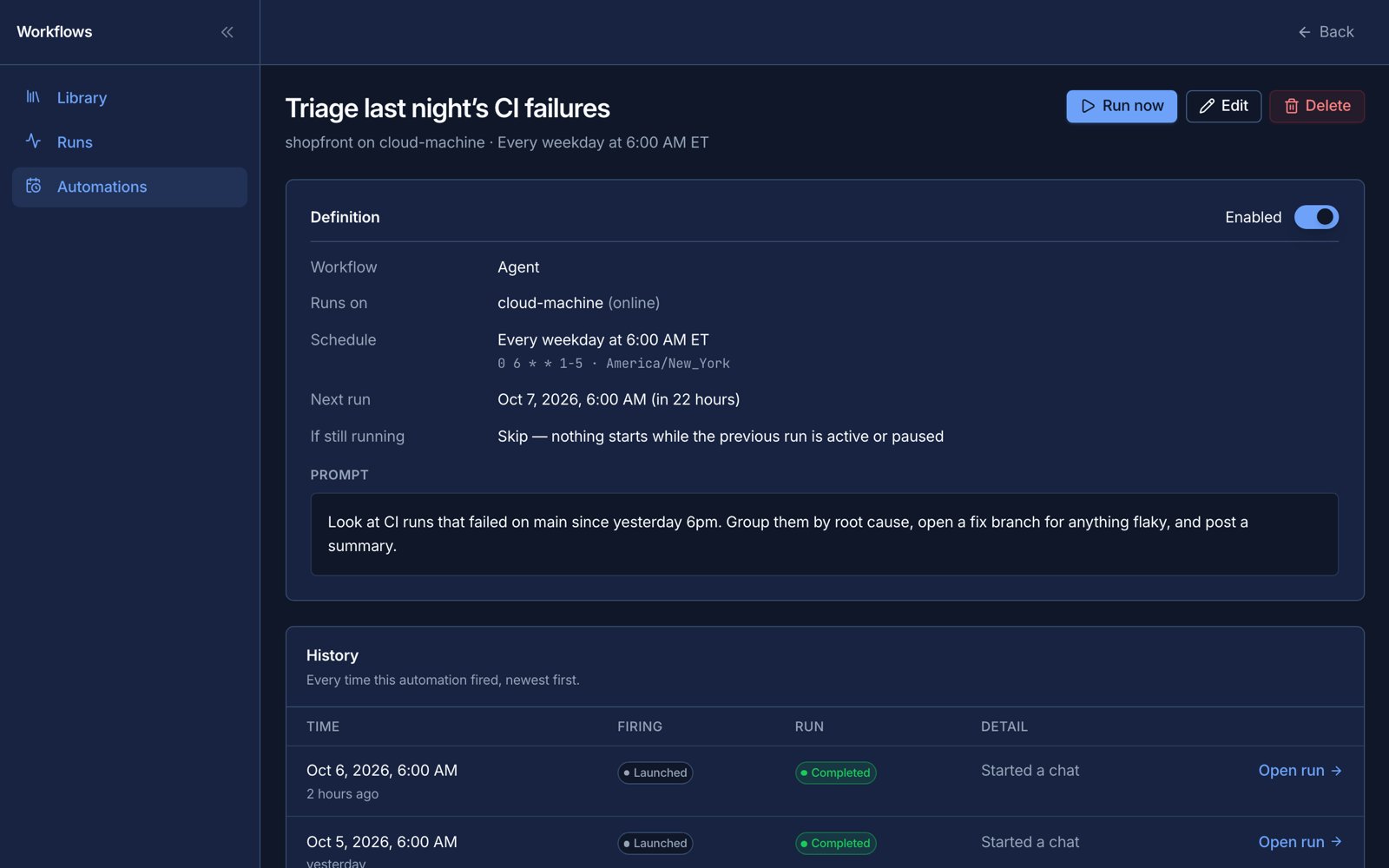
A run that launched and then failed counts as a failure, not just a launch that errored. Opening an automation shows its history: each firing, what it did (launched, skipped, failed) and a link to the run it started.
## Declare, then activate
Automations have two halves, and keeping them apart is what makes a workflow shareable.
A workflow **declares when it should run** in a `triggers:` block of its YAML. The declaration says the source (a schedule, a webhook, an integration event, another workflow's outcome), an optional filter, and how the event's data becomes the workflow's inputs. Declaring a trigger fires nothing.
You then **activate** it, which says as whom and where: your account, a project, the [machine](/machines/overview) whose tools the run uses (or no machine), and, for an integration event, which connected account it listens through. In the app, a workflow's detail page lists its declared triggers with an **Activate** button. The activation re-reads the declaration every time it fires, so editing the workflow's `triggers:` block changes the automation. If you rename or remove the declaration, the activation is marked **broken** and fires nothing until you restore it.
```yaml theme={null}
name: issue-triage
description: Triage new GitHub issues and a weekday morning digest
entry: [triage]
inputs:
issue_number:
type: integer
default: 0
description: The issue to triage (set by the trigger)
triggers:
- name: new-issue
description: Triage each new issue as it is opened
integration:
integration: github
events: [issues.opened]
match:
repository: acme/shopfront
filter: "trigger.payload.data.issue.user.login != 'dependabot[bot]'"
inputs:
issue_number: "{{ trigger.payload.data.issue.number }}"
prompt: "Triage issue #{{ trigger.payload.data.issue.number }}"
- name: weekday-digest
description: Summarise open issues every weekday morning
schedule:
cron: ["0 9 * * 1-5"]
timezone: America/New_York
overlap: skip
nodes:
- id: triage
type: workflow
ref: builtin://agent
args:
model:
tags: [moderate]
```
Each entry has a unique `name` and exactly one source. The fields around the source are the same for every kind:
| Field | Purpose |
| - | - |
| `name` | Unique within the workflow; what an activation refers to |
| `description` | Shown to whoever chooses what to activate |
| `filter` | A [CEL](/reference/cel-expressions) expression over `trigger`; the event fires only if it is true. Not allowed on schedules |
| `inputs` | Sets workflow inputs from the event: input name to a template over `trigger` |
| `prompt` | The first message of the run, as a template over `trigger`. An activation's own message overrides it |
Inside templates and filters, `trigger.payload` is the event's data and `trigger.kind` says what fired. Unknown keys in a `triggers:` block are errors, not ignored: a mistyped `filtr:` would otherwise mean a trigger that fires on everything.
## The four kinds
| Kind | Fires when | Page |
| - | - | - |
| `schedule` | A cron time or interval arrives | [Schedules](/automations/schedules) |
| `webhook` | Something POSTs to the trigger's URL | [Webhooks](/automations/webhooks) |
| `integration` | A connected app reports an event | [Integrations](/integrations/overview) |
| `workflow_event` | A run of one of your workflows finishes, fails or blocks | [Workflow events](/automations/workflow-events) |
## Unattended by design
Nobody is watching an automation's run. The agent is told to decide and proceed rather than ask, questions and approvals resolve immediately with no answer instead of waiting, and a run that hits trouble records it rather than parking forever. Design workflows for this: give them everything they need in the prompt and inputs, and assume nothing can be clarified mid-run.
A workflow that should only ever start from its triggers, never from a chat, can set `automation_only: true`.
## Watching your automations
**Workflows → Automations** lists every automation across your projects, with a "coming up" timeline of the next 24 hours of scheduled runs and each automation's health, computed from its last ten firings:
| Health | Meaning |
| - | - |
| Healthy | No failure recently and at least one completed run |
| Degraded | A failure in the window, or three skipped scheduled fires in a row |
| Failing | The two most recent resolved firings both failed |
| Broken | The workflow it activates is gone, renamed its trigger, or changed kind |
| Unknown | Never fired, or nothing has resolved yet |
A run that launched and then failed counts as a failure, not just a launch that errored. Opening an automation shows its history: each firing, what it did (launched, skipped, failed) and a link to the run it started.
 ## From the command line
`reliant trigger` manages **schedule** automations: `create`, `list`, `get`, `update`, `enable`, `disable`, `fire`, `events` and `delete`. Webhook, integration and workflow-event automations are activated from the app (or by an agent with the `activate_trigger` tool). See [Schedules](/automations/schedules) for the commands.
## Related topics
* [Schedules](/automations/schedules), [Webhooks](/automations/webhooks), [Workflow events](/automations/workflow-events)
* [No-machine runs](/automations/no-machine-runs)
* [Integrations](/integrations/overview)
* [Cloud machines & plans](/machines/cloud), for a machine that is awake at 3 a.m.
This documentation is built and hosted on [Mintlify](https://mintlify.com), a developer documentation platform.
## From the command line
`reliant trigger` manages **schedule** automations: `create`, `list`, `get`, `update`, `enable`, `disable`, `fire`, `events` and `delete`. Webhook, integration and workflow-event automations are activated from the app (or by an agent with the `activate_trigger` tool). See [Schedules](/automations/schedules) for the commands.
## Related topics
* [Schedules](/automations/schedules), [Webhooks](/automations/webhooks), [Workflow events](/automations/workflow-events)
* [No-machine runs](/automations/no-machine-runs)
* [Integrations](/integrations/overview)
* [Cloud machines & plans](/machines/cloud), for a machine that is awake at 3 a.m.
This documentation is built and hosted on [Mintlify](https://mintlify.com), a developer documentation platform.