
On this page
Chat
The chat is where you interact with Reliant’s AI assistant. It provides a powerful, context-aware conversation experience designed specifically for software development tasks.

Chat Input Controls
- Model Selector: Choose which AI model to use (GPT-5, Claude, etc.)
- Agent/Flow Selector: Select specialized agents or multi-agent flows
- Worktree Selector: Choose which Git worktree context to use
- Prompts: Access saved prompt templates
- Auto-Approve Toggle: Enable/disable automatic approval of tool executions (see Auto-Approval section below)
- Attach Files: Click paperclip or drag & drop files
- Save Draft: Manually save current message as draft
- View Drafts: Access previously saved drafts
- Tasks Panel: View active tasks and background processes
Tool Executions
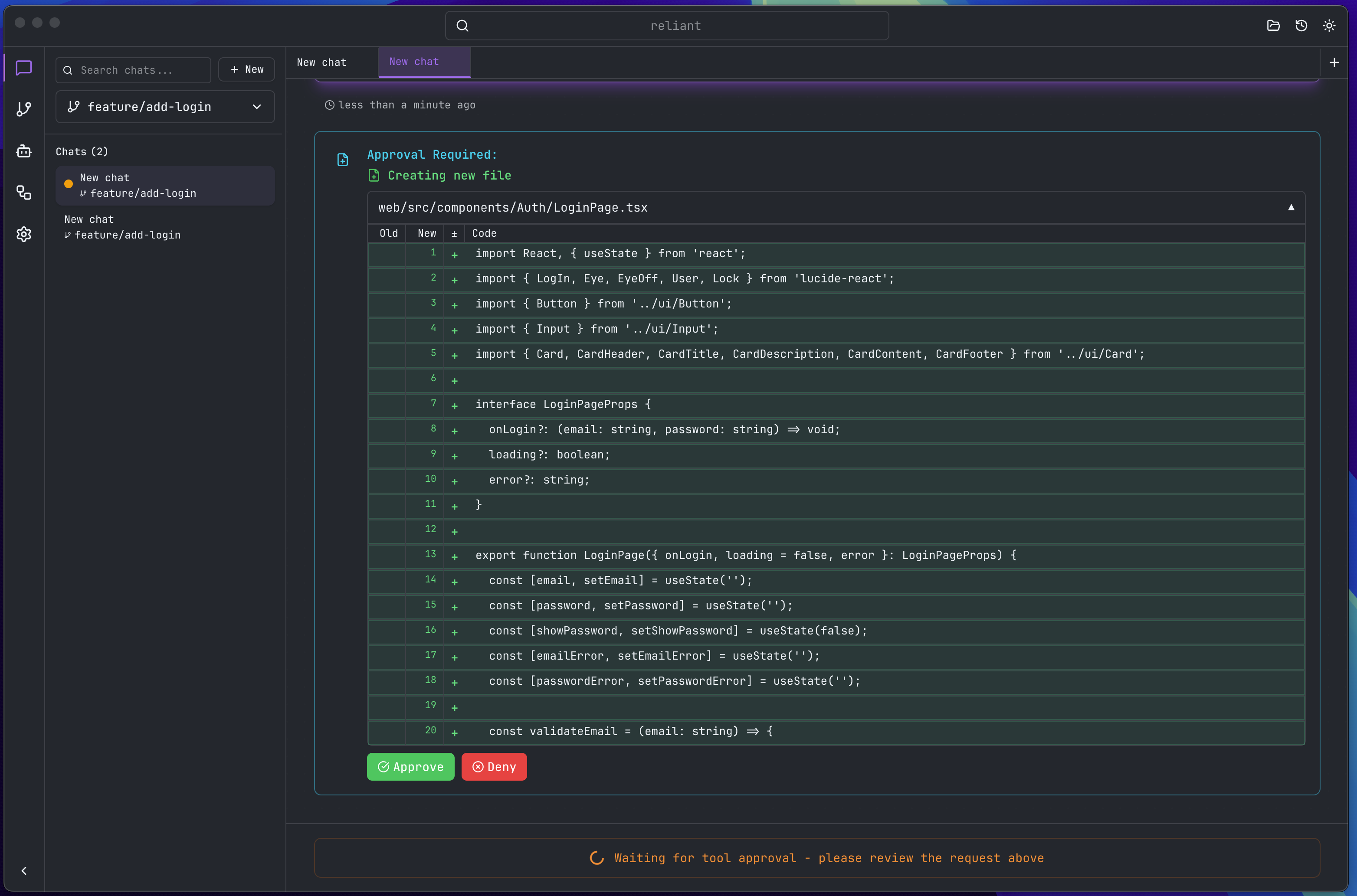
The AI can execute various tools:
- File Operations: Read, write, and edit files
- Code Search: Search for patterns in your codebase
- Terminal Commands: Execute shell commands
- Web Search: Search for information online
- Each tool execution shows its status and results
- Requires Approval: By default, all tool executions require your approval (see Auto-Approval section)
Context Awareness
The chat automatically includes:
- Current Worktree: Active Git worktree and branch
- Project Context: Project structure and configuration
- Recent Changes: Git status and recent modifications
- Session State: Maintains context across messages
Auto-Approval Mode
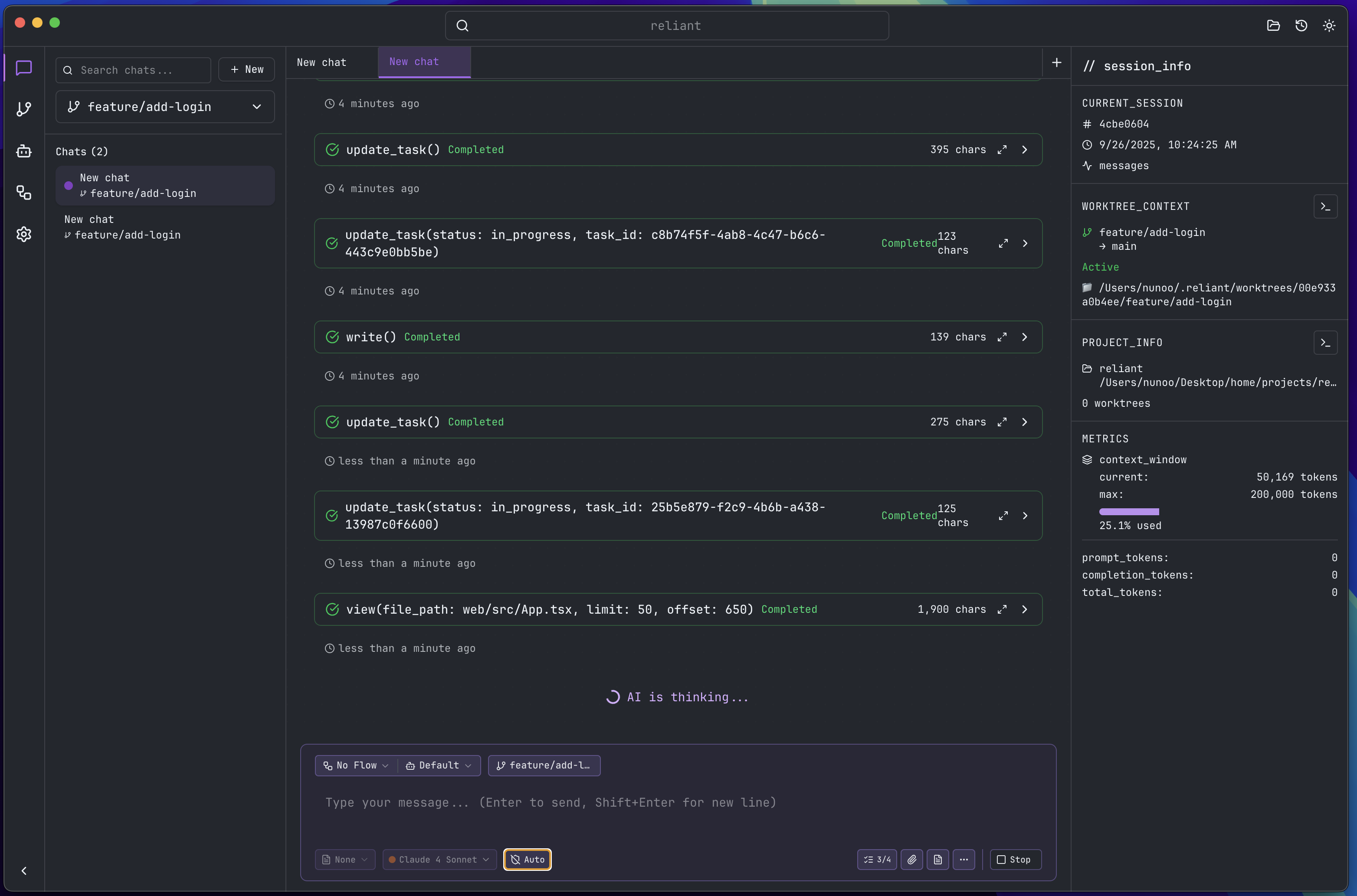
Speed up your workflow by enabling auto-approval:
- Toggle Auto-Approve in the chat input controls (lightning bolt icon)
- When enabled, the AI executes tools without waiting for your approval
- Perfect for:
- Trusted operations like reading files
- Repetitive tasks
- When you want the AI to work autonomously
- Stay in Control: Disable anytime to review tool executions again
- Auto-approval is per-chat session - each new chat starts with approvals required
Tips for Effective Chats
- Be Specific: Provide clear, detailed descriptions of what you need
- Include Context: Attach relevant files or code snippets
- Use Examples: Show what you want with concrete examples
- Select the Right Model: Different models excel at different tasks
- Use Agents: Select specialized agents for specific domains
- Branch Conversations: Branch from any message to explore alternatives
- Save Useful Prompts: Create reusable prompt templates