> ## Documentation Index
> Fetch the complete documentation index at: https://docs.reliantlabs.io/llms.txt
> Use this file to discover all available pages before exploring further.
# Cloud machines & plans
> Compute sizes and prices, included hours, and how cloud machines wake and suspend
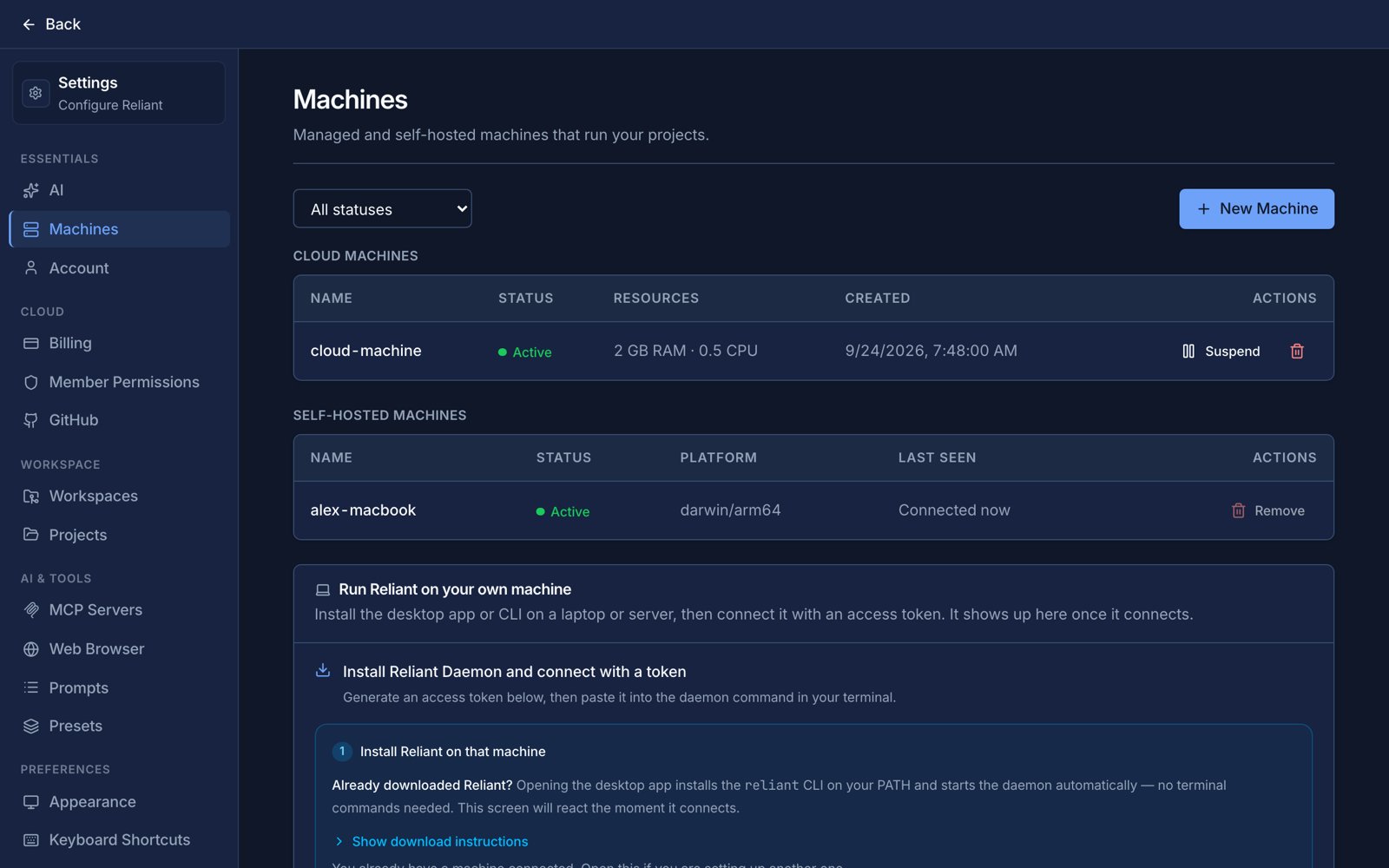
A cloud machine is a computer Reliant runs for you. It has your project on its own disk, runs your agents' commands, and you can reach it from the web app, the desktop app or your phone. There is no free tier: a cloud machine needs a compute plan or a coupon that grants machine time.
 ## Compute plans
You buy a **compute plan**, a monthly subscription, and the plan decides the largest machine you can create. A plan always allows its own size and every smaller one.
| Plan | Reserved CPU / RAM | Can burst to | Disk | Price |
| - | - | - | - | - |
| Compute Small | 0.5 CPU / 2 GB | 2 CPU / 4 GB | 20 GiB | \$15 / month |
| Compute Medium | 1 CPU / 4 GB | 4 CPU / 8 GB | 40 GiB | \$35 / month |
| Compute Large | 2 CPU / 8 GB | 8 CPU / 16 GB | 80 GiB | \$79 / month |
| Compute XL | 4 CPU / 16 GB | 16 CPU / 32 GB | 160 GiB | \$159 / month |
| Compute 2XL | 8 CPU / 32 GB | 32 CPU / 64 GB | 320 GiB | \$299 / month |
"Reserved" is what your machine is guaranteed; "can burst to" is how far it may go above that when the host has room, which is useful for a spiky build. Choose a size by the memory your builds and tests need: that is the limit people usually hit first.
## Included hours and extra time
Every plan includes **160 hours of machine time per month**, shared across all your machines. The size of the plan buys a bigger machine, not more hours. Time is counted while a machine is awake; a suspended machine uses no compute hours.
When the included hours are used up, you choose what happens in **Settings → Billing**, under extra machine time:
* **Stop at my included hours.** Machines will not start once the hours are used, and nothing extra is charged.
* **Allow extra time, up to a monthly limit.** Machines keep running and the extra time is billed, but never beyond the limit you set.
* **Allow extra time with no limit.**
Extra time is billed per minute at a rate that depends on your plan:
| Plan | Extra time |
| - | - |
| Compute Small | \$0.12 / hour |
| Compute Medium | \$0.24 / hour |
| Compute Large | \$0.54 / hour |
| Compute XL | \$1.02 / hour |
| Compute 2XL | \$1.92 / hour |
If you redeemed a coupon that grants machine time, those minutes are used after your included hours and before any extra time is billed. They are a one-time bonus and do not renew each period. The **Usage** tab shows hours included, hours of extra time, the estimated cost of that extra time, and any coupon minutes left.
## Waking and suspending
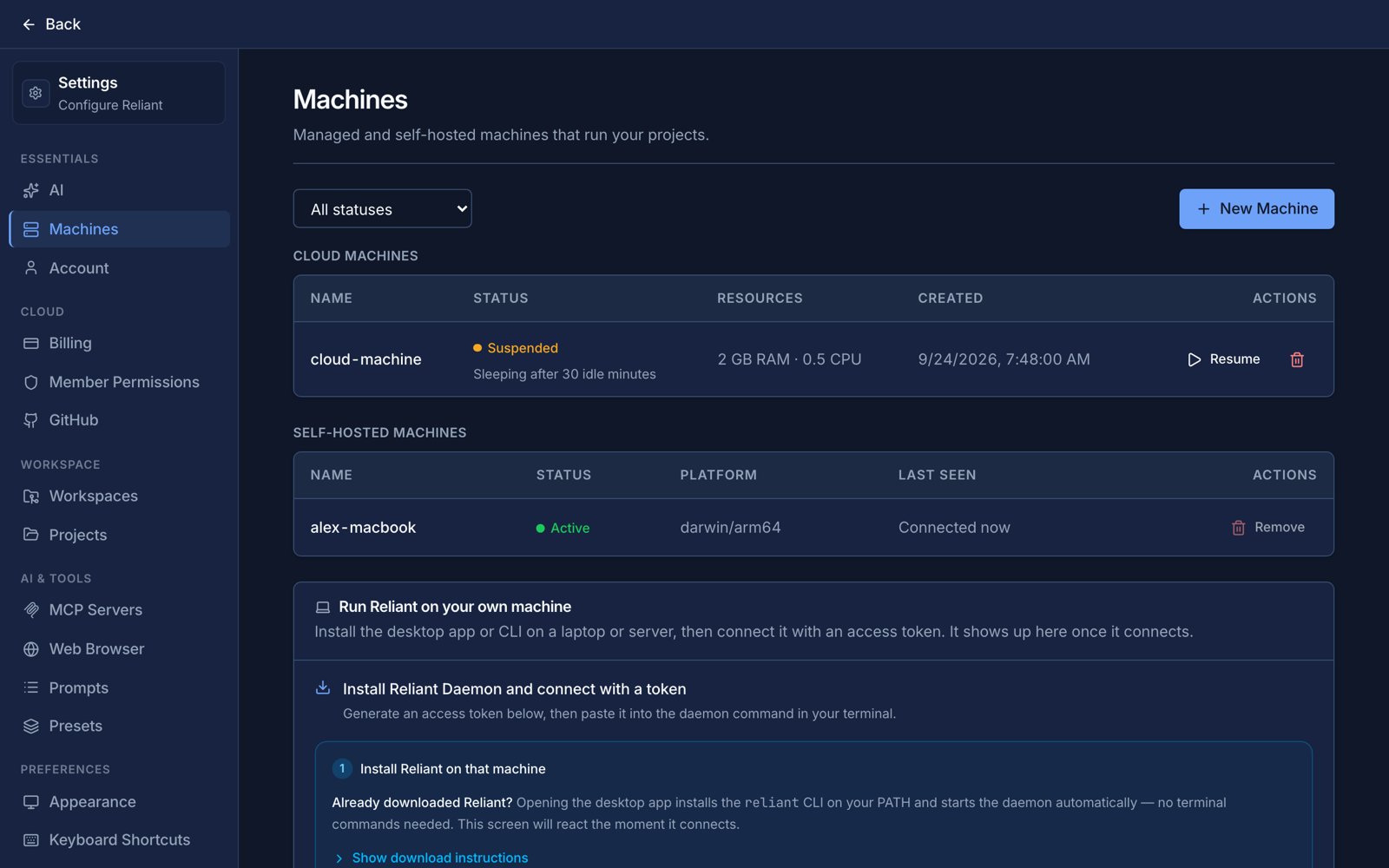
A cloud machine does not run all the time. After a period with no activity it **suspends**: its compute is released and you stop using hours, but its disk is kept, so your checkout, installed tools and uncommitted work are exactly where you left them. You choose how long "no activity" is when you create the machine: 15 minutes, 30 minutes (the default), 1 hour, 2 hours or 4 hours. Four hours is the most the platform accepts.
You do not have to wake a suspended machine yourself. When a chat running on it, or an [automation](/automations/overview) needs it, Reliant resumes it and the run continues once it has reconnected; this takes a short while, and the machine shows as waking in **Settings → Machines** until it does. You can also start and stop it by hand there.
## Compute plans
You buy a **compute plan**, a monthly subscription, and the plan decides the largest machine you can create. A plan always allows its own size and every smaller one.
| Plan | Reserved CPU / RAM | Can burst to | Disk | Price |
| - | - | - | - | - |
| Compute Small | 0.5 CPU / 2 GB | 2 CPU / 4 GB | 20 GiB | \$15 / month |
| Compute Medium | 1 CPU / 4 GB | 4 CPU / 8 GB | 40 GiB | \$35 / month |
| Compute Large | 2 CPU / 8 GB | 8 CPU / 16 GB | 80 GiB | \$79 / month |
| Compute XL | 4 CPU / 16 GB | 16 CPU / 32 GB | 160 GiB | \$159 / month |
| Compute 2XL | 8 CPU / 32 GB | 32 CPU / 64 GB | 320 GiB | \$299 / month |
"Reserved" is what your machine is guaranteed; "can burst to" is how far it may go above that when the host has room, which is useful for a spiky build. Choose a size by the memory your builds and tests need: that is the limit people usually hit first.
## Included hours and extra time
Every plan includes **160 hours of machine time per month**, shared across all your machines. The size of the plan buys a bigger machine, not more hours. Time is counted while a machine is awake; a suspended machine uses no compute hours.
When the included hours are used up, you choose what happens in **Settings → Billing**, under extra machine time:
* **Stop at my included hours.** Machines will not start once the hours are used, and nothing extra is charged.
* **Allow extra time, up to a monthly limit.** Machines keep running and the extra time is billed, but never beyond the limit you set.
* **Allow extra time with no limit.**
Extra time is billed per minute at a rate that depends on your plan:
| Plan | Extra time |
| - | - |
| Compute Small | \$0.12 / hour |
| Compute Medium | \$0.24 / hour |
| Compute Large | \$0.54 / hour |
| Compute XL | \$1.02 / hour |
| Compute 2XL | \$1.92 / hour |
If you redeemed a coupon that grants machine time, those minutes are used after your included hours and before any extra time is billed. They are a one-time bonus and do not renew each period. The **Usage** tab shows hours included, hours of extra time, the estimated cost of that extra time, and any coupon minutes left.
## Waking and suspending
A cloud machine does not run all the time. After a period with no activity it **suspends**: its compute is released and you stop using hours, but its disk is kept, so your checkout, installed tools and uncommitted work are exactly where you left them. You choose how long "no activity" is when you create the machine: 15 minutes, 30 minutes (the default), 1 hour, 2 hours or 4 hours. Four hours is the most the platform accepts.
You do not have to wake a suspended machine yourself. When a chat running on it, or an [automation](/automations/overview) needs it, Reliant resumes it and the run continues once it has reconnected; this takes a short while, and the machine shows as waking in **Settings → Machines** until it does. You can also start and stop it by hand there.
 Processes you started yourself (a dev server, say) do not survive a suspend, because the machine's compute is gone; files on disk do.
## Creating and managing machines
In **Settings → Machines**, choose **Create Machine**, give it a name, optionally pick a repository to clone, choose a size (only the sizes your plan allows are offered) and set the idle timeout. The same page lets you open a machine to see its status, size, storage and idle timeout, restart it, grant outside apps access to it, and delete it. Plans, upgrades and cancellation are under **Settings → Billing**; see [Billing, wallet & Reliant AI](/account/billing).
## Related topics
* [Machines overview](/machines/overview)
* [Your own computer](/machines/your-computer), for a machine that costs no compute hours
* [Billing, wallet & Reliant AI](/account/billing)
* [Troubleshooting](/help/troubleshooting), if a machine will not connect
This documentation is built and hosted on [Mintlify](https://mintlify.com), a developer documentation platform.
Processes you started yourself (a dev server, say) do not survive a suspend, because the machine's compute is gone; files on disk do.
## Creating and managing machines
In **Settings → Machines**, choose **Create Machine**, give it a name, optionally pick a repository to clone, choose a size (only the sizes your plan allows are offered) and set the idle timeout. The same page lets you open a machine to see its status, size, storage and idle timeout, restart it, grant outside apps access to it, and delete it. Plans, upgrades and cancellation are under **Settings → Billing**; see [Billing, wallet & Reliant AI](/account/billing).
## Related topics
* [Machines overview](/machines/overview)
* [Your own computer](/machines/your-computer), for a machine that costs no compute hours
* [Billing, wallet & Reliant AI](/account/billing)
* [Troubleshooting](/help/troubleshooting), if a machine will not connect
This documentation is built and hosted on [Mintlify](https://mintlify.com), a developer documentation platform.