> ## Documentation Index
> Fetch the complete documentation index at: https://docs.reliantlabs.io/llms.txt
> Use this file to discover all available pages before exploring further.
# Machines
> Where your code lives and your commands run: your own computer or a Reliant cloud machine
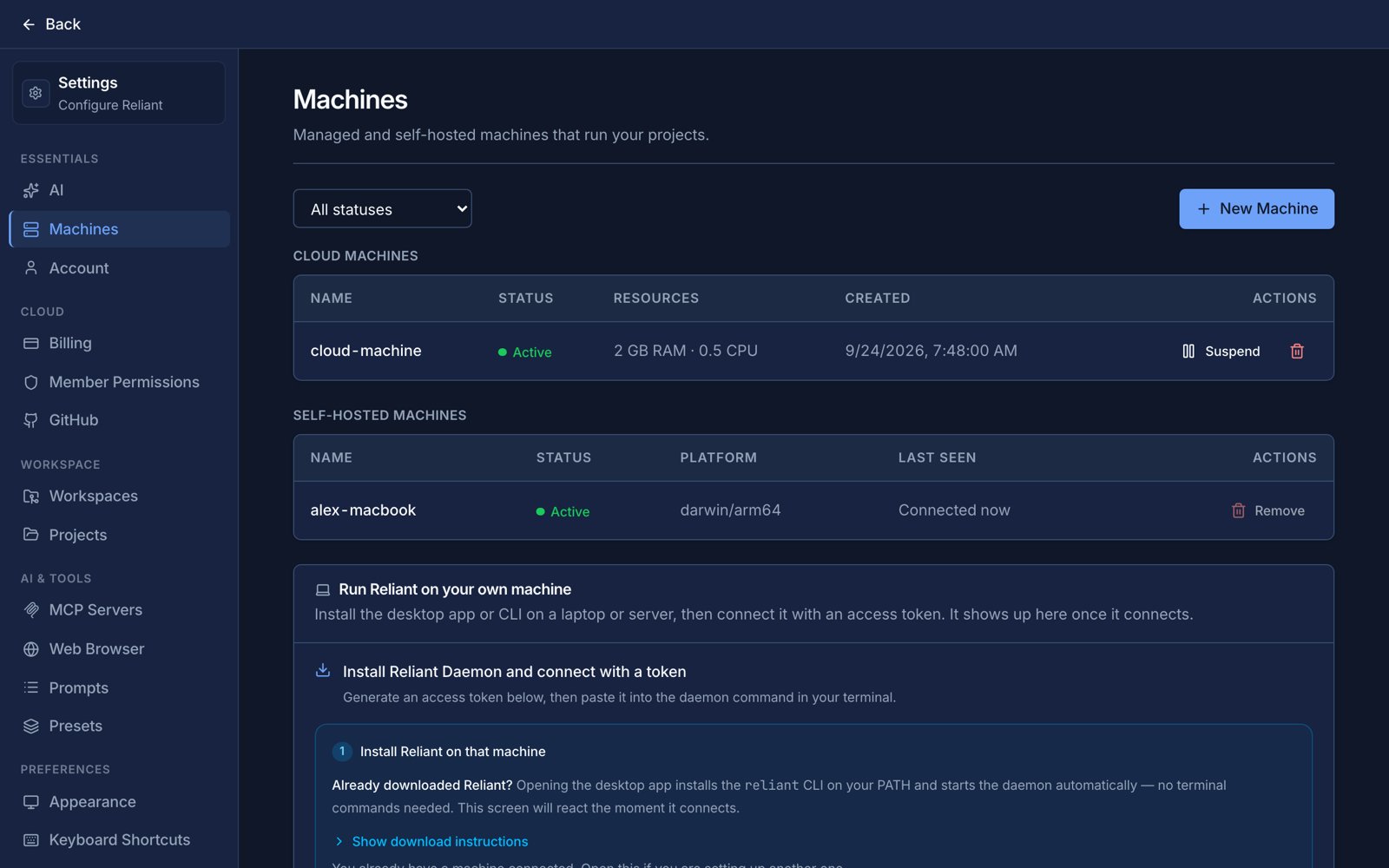
A **machine** is the place your code actually lives and your commands run. Reliant's servers run the conversation and call the model, but anything that touches your code happens on a machine: reading and editing files, running shell commands, running tests, using git, and starting your [MCP servers](/settings/mcp-servers). The program that does this work is called the **tools daemon**, and you will see "daemon" in the CLI and in some settings. In the app it is simply a machine.
There are two kinds, and you can use both at once.
**Your own computer** is a laptop, workstation, home server or any other computer you control. The desktop app starts a daemon on it for you, or you can run one yourself with the CLI. Your repository stays on that computer. See [Your own computer](/machines/your-computer).
**A Reliant cloud machine** is a computer we run for you, in one of five sizes, that sleeps when you are not using it and wakes when a run needs it. It is billed through a compute plan. See [Cloud machines & plans](/machines/cloud).
 ## When to use which
Choose your own computer for a chat when the project is already checked out there, when it needs hardware or network access only that computer has, or when you want the work to happen next to your editor. Choose a cloud machine when you want runs to keep going while your laptop is closed, when you want to start work from the web or your phone, or when an [automation](/automations/overview) has to fire at 3 a.m. on a schedule. You can have both and run different chats on different machines.
## What lives on the machine
Because the daemon is the thing that reads your files, several pieces of configuration belong to the machine rather than to your account:
* Your project files and git history, including any [worktrees](/features/worktrees).
* [Memory files](/settings/memories): `~/.reliant/reliant.md` is the one on *that* machine, so a cloud machine has its own, separate from your laptop's.
* [MCP servers](/settings/mcp-servers). They are started by the daemon, so a server that needs `npx` or `uvx` needs it installed on the machine that runs it.
* [Model configuration](/settings/model-config) and any [local models](/settings/api-keys).
What a machine sends back to Reliant is covered in [Privacy & security](/help/privacy): whatever an agent reads or a command prints is stored with the chat and sent to your model provider.
## Which machine a chat runs on
A project is not tied to one machine. You can install the same project on several machines, for example your laptop and a cloud machine, and each has its own checkout, git history and worktrees. What decides where work happens is the chat.
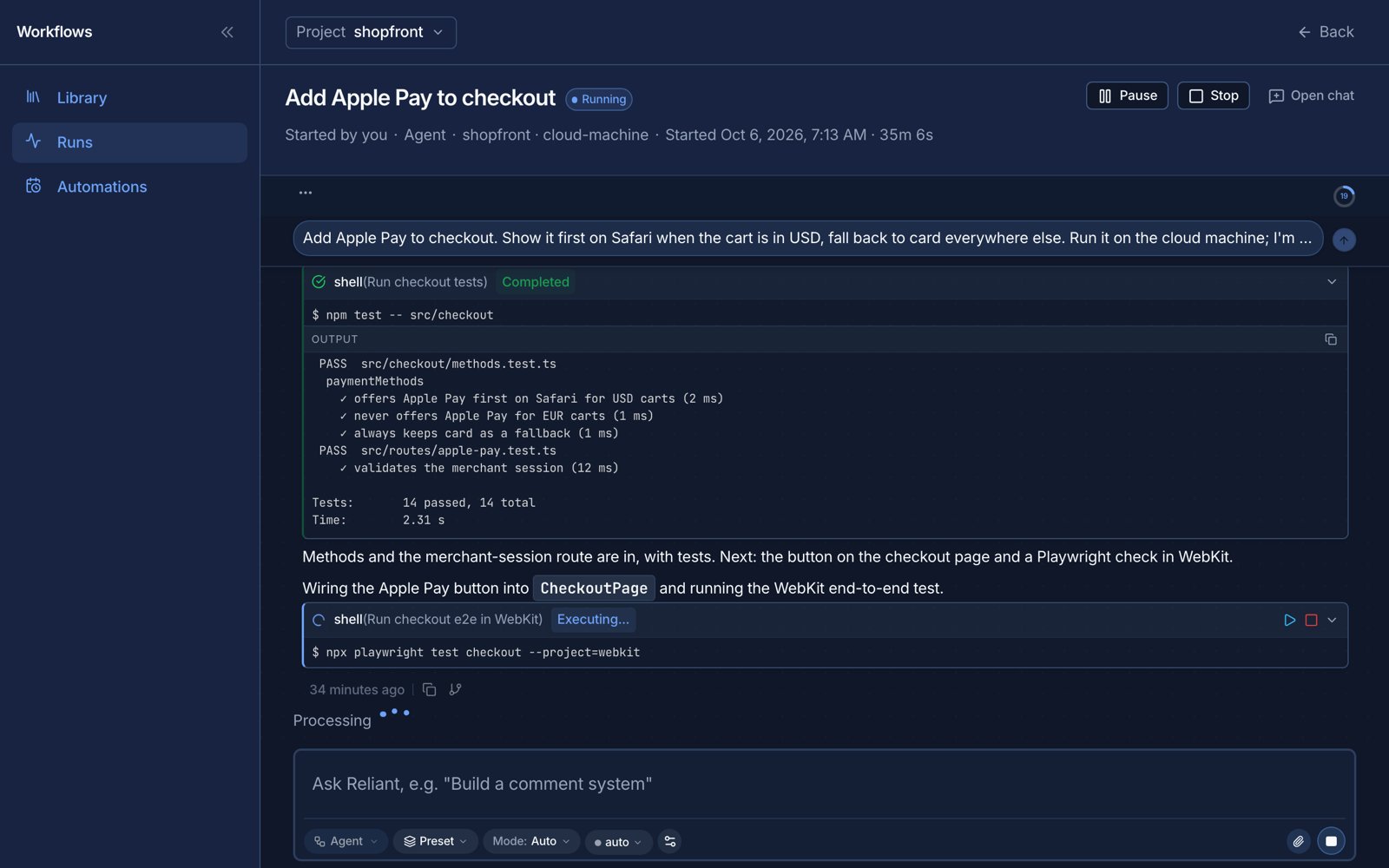
Each chat runs on one machine. On the new-chat screen the machine picker shows where it will run, starting from your default machine, and you can choose another machine you own, or **No machine**. A chat with no machine can use the web and your integrations but cannot read or change files, run a shell or reach a local MCP server. If you leave the machine unchosen, the chat runs on your default machine. You can change a chat's machine later with **Connect a machine**, which is also how a no-machine chat gets one.
A branched chat is the exception to choosing freely. Its [worktree](/features/worktrees) lives on the disk of the machine that created it, so the branch runs on that machine. A new worktree is created on the machine of the chat it is created for, and the Files tab and the file, worktree and git operations for a chat all go to that chat's machine. A workspace you create from the new-chat screen, before the chat exists, is created on your default machine.
[Automations](/automations/overview) pick their own machine when you activate them, independently of your chats. That is how a scheduled job can use a cloud machine that is awake at 3 a.m. while you work interactively on your laptop. A workflow can also pin a machine itself with `daemon:`. The rules are in [Choosing a machine in workflows](/machines/choosing).
## When to use which
Choose your own computer for a chat when the project is already checked out there, when it needs hardware or network access only that computer has, or when you want the work to happen next to your editor. Choose a cloud machine when you want runs to keep going while your laptop is closed, when you want to start work from the web or your phone, or when an [automation](/automations/overview) has to fire at 3 a.m. on a schedule. You can have both and run different chats on different machines.
## What lives on the machine
Because the daemon is the thing that reads your files, several pieces of configuration belong to the machine rather than to your account:
* Your project files and git history, including any [worktrees](/features/worktrees).
* [Memory files](/settings/memories): `~/.reliant/reliant.md` is the one on *that* machine, so a cloud machine has its own, separate from your laptop's.
* [MCP servers](/settings/mcp-servers). They are started by the daemon, so a server that needs `npx` or `uvx` needs it installed on the machine that runs it.
* [Model configuration](/settings/model-config) and any [local models](/settings/api-keys).
What a machine sends back to Reliant is covered in [Privacy & security](/help/privacy): whatever an agent reads or a command prints is stored with the chat and sent to your model provider.
## Which machine a chat runs on
A project is not tied to one machine. You can install the same project on several machines, for example your laptop and a cloud machine, and each has its own checkout, git history and worktrees. What decides where work happens is the chat.
Each chat runs on one machine. On the new-chat screen the machine picker shows where it will run, starting from your default machine, and you can choose another machine you own, or **No machine**. A chat with no machine can use the web and your integrations but cannot read or change files, run a shell or reach a local MCP server. If you leave the machine unchosen, the chat runs on your default machine. You can change a chat's machine later with **Connect a machine**, which is also how a no-machine chat gets one.
A branched chat is the exception to choosing freely. Its [worktree](/features/worktrees) lives on the disk of the machine that created it, so the branch runs on that machine. A new worktree is created on the machine of the chat it is created for, and the Files tab and the file, worktree and git operations for a chat all go to that chat's machine. A workspace you create from the new-chat screen, before the chat exists, is created on your default machine.
[Automations](/automations/overview) pick their own machine when you activate them, independently of your chats. That is how a scheduled job can use a cloud machine that is awake at 3 a.m. while you work interactively on your laptop. A workflow can also pin a machine itself with `daemon:`. The rules are in [Choosing a machine in workflows](/machines/choosing).
 ## Related topics
* [Your own computer](/machines/your-computer): install, register and run a daemon.
* [Cloud machines & plans](/machines/cloud): sizes, hours, waking and suspending.
* [Choosing a machine in workflows](/machines/choosing): the `daemon:` field and selection order.
* [Billing, wallet & Reliant AI](/account/billing)
This documentation is built and hosted on [Mintlify](https://mintlify.com), a developer documentation platform.
## Related topics
* [Your own computer](/machines/your-computer): install, register and run a daemon.
* [Cloud machines & plans](/machines/cloud): sizes, hours, waking and suspending.
* [Choosing a machine in workflows](/machines/choosing): the `daemon:` field and selection order.
* [Billing, wallet & Reliant AI](/account/billing)
This documentation is built and hosted on [Mintlify](https://mintlify.com), a developer documentation platform.