
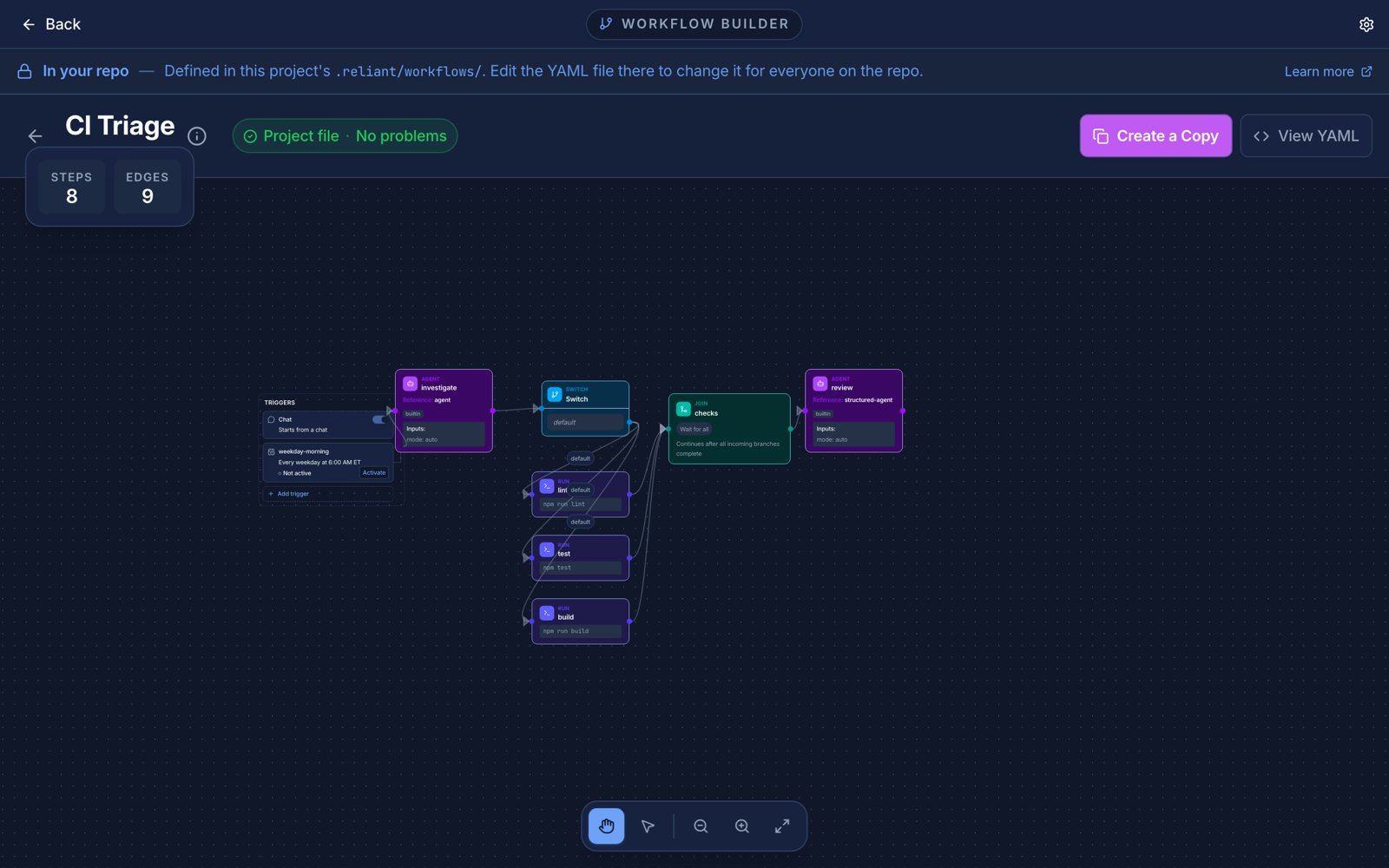
A workflow on the builder canvas. Example data.
When to Create Custom Workflows
Before building a custom workflow, consider whether you actually need one. Workflows shine in specific scenarios: Automate repetitive multi-step tasks: If you find yourself repeatedly running the same sequence of agent interactions—like “analyze code, write tests, run tests, fix failures”—a workflow captures that pattern and makes it repeatable. Enforce specific processes: Workflows can encode your team’s practices. A TDD workflow that requires tests to fail before allowing implementation. A code review workflow that requires two agents to approve changes. A security audit that runs after every feature implementation. Create specialized agents: Sometimes you need an agent with specific tools, prompts, or behaviors. A workflow can define a “documentation writer” or “security auditor” persona with appropriate constraints. Build multi-agent coordination: When you need multiple agents working together—whether in debate, parallel competition, or sequential handoff—workflows provide the orchestration. If you just need to run a single agent with a specific prompt, consider using Presets instead. Workflows are for when you need control flow, loops, or multiple agents.Three Ways to Create Workflows
Reliant provides three methods for creating custom workflows, each suited to different situations.YAML (Manual)
Write workflow definitions directly in YAML files placed in.reliant/workflows/. This gives you full control over every aspect of the workflow—nodes, edges, conditions, loops, thread configuration, and inputs. Most of this guide covers YAML authoring in detail.
Best for: Fine-tuning workflows, understanding exactly what’s happening, version-controlled workflow definitions.
Visual Editor
The visual editor provides a graphical interface for building workflows. Open it from Workflows → Library with New workflow, or Edit on a workflow. You can drag and drop nodes, draw edges between them, and configure node properties through forms; a workflow’s triggers appear as cards on the canvas. The visual editor reads and writes the same YAML format, so you can switch between the visual editor and hand-editing YAML at any time. A workflow made in the app is a Draft until you Publish it. A draft is saved as it is, problems and all, but it cannot be run from a chat, referenced by another workflow, or enabled. Publishing checks it first: a workflow with validation errors stays a draft and the builder lists what to fix. You can still try a draft with the builder’s Test run, which runs exactly what you saved and lets you watch each step on the canvas. Best for: Exploring workflow structure visually, quickly prototyping node graphs, understanding how edges route execution.Building workflows with chat
The chat panel in the visual editor is a normal Reliant chat — the same one you use everywhere else, with your usual default workflow, preset, and model. Nothing binds it to the workflow you have open: its composer starts with a reference likeWorkflow `my-workflow`: (visible and editable) so the agent knows which workflow you mean, and the agent works on it through the workflow tools. In any chat, load them with load_tool(name="tag:workflow").
Every workflow tool takes an explicit workflow id (UUID, slug, or name), so you can also point any chat at any workflow by naming it. When the agent saves a change, the open canvas updates live. If you have unsaved edits on the canvas, you get a “This workflow was updated elsewhere” notice with a Reload action instead, so your edits are never overwritten silently.
The agent should create scenario tests and run static validation for the workflows it produces, so they come with test coverage from the start.
Best for: Getting started quickly, creating workflows for unfamiliar patterns, ensuring test coverage from day one.
Workflow File Location
Reliant automatically discovers workflow files in your project’s.reliant/workflows/ directory.
your-project
.reliant
workflows
code-review.yaml
security-audit.yaml
release-prep.yaml
code-review
scenarios
flags-missing-tests.yaml
src
name: field, never by its file name — ref: project://code-review and the scenario directory code-review/scenarios/ both mean “the workflow named code-review”, wherever it lives. Name the file after the workflow (code-review.yaml for name: code-review) so the two never disagree; two files declaring one name, or a file without a name:, are reported as errors rather than one of them being picked.
Scenarios: A workflow’s scenario tests live in <name>/scenarios/ next to it, one scenario per file, where <name> is the workflow’s name: as a slug.
Discovery: The machine your project is on watches .reliant/workflows/ and syncs it to Reliant every couple of seconds, so a saved file shows up in the workflow selector and the library without a restart. A file that does not parse is listed in the library under Failed to load, with the error.
Your workflows and the project’s: Workflows you create in the app (in the builder, or by asking an agent) belong to your account rather than to a file. When one of yours has the same name: as a project workflow, yours wins for you, in chats, refs and scenarios alike.
Commit your .reliant/workflows/ directory to version control to share workflows with your team.
Anatomy of a Workflow
A workflow file has five key sections. Here’s the minimal structure:Metadata
The top of your workflow file contains identification metadata:
The parser rejects unknown top-level fields, so a typo like
titel: fails loudly at load time instead of being silently ignored.
Inputs
Inputs define what parameters your workflow accepts. Every input needs either a default value orrequired: true:
string, number, integer, boolean, enum, model, tools, preset.
For complete input type documentation, see the Types Reference.
Entry Point
Theentry field specifies which node starts execution:
Nodes
Nodes are the execution units. Each node has anid and a type that determines what it does:
Workflow nodes run a child workflow, either by reference or inline:
nodes.<id>.<name>; validation checks the names. Their values are dynamically typed, so a boolean output used as a condition is compared: nodes.facts.ready == true. A value that is exactly one
{{ }} keeps its type; text around it makes a string; a non-string value is a literal. Outputs
cannot read each other, so chain two compute nodes when one feeds the next. A failing expression
fails the node. In a scenario a compute node needs no mock event. The expressions it can use are
listed in CEL expressions.
Publish nodes commit a worktree’s changes and push them to a feature branch, so a workflow can open a
pull request without any shell holding a git credential. Pair one with credentials: none on the shell
that does the editing:
refused: true and a refusal that says why; it does not fail) when the branch is the
repository’s default branch, a protected branch, main, master or release/*, is not a plain branch name
(refs/..., tags, odd characters), or falls outside allow. With pr_head_of the pull request must be open
and its head must be in the same repository, never a fork. It never force-pushes: if the remote branch has
commits your checkout lacks, the push is refused, not overwritten. No changes to commit is not an error:
pushed is false and nothing is sent.
The credential is fetched for the one push, travels to your machine in that command and is handed to a single
git process over a private pipe. It is never in an environment variable, a command line or a file, and never
reaches a shell. The commit carries Reliant-Run and Reliant-Workflow trailers, and the push is recorded in
the write ledger with its sha before it is made, so the push and pull_request.synchronize events it causes
are recognized as this run’s own (trigger.origin). Outputs: pushed, sha, branch, base_sha,
files_changed, insertions, deletions, refused, refusal.
The push is made as whoever the run writes as. By default that is you, through your own GitHub connection, the same one an action node uses. An automation that writes as the Reliant bot pushes with the bot’s token for that one repository instead; if that token cannot be had, the push is refused and nothing is pushed, never made as you.
Shells without credentials. A workflow that should never push, merge or deploy can say so for the
shell its agents use and for its run nodes. With credentials: none, the command’s environment has no
GH_TOKEN, GITHUB_TOKEN, GH_*/GITHUB_*, GIT_TOKEN, no ssh agent socket or GIT_SSH_COMMAND, no
cloud variables (AWS_*, AZURE_*, GOOGLE_*, CLOUDSDK_*), no kubeconfig and no forge credential
helper. Reliant’s git credential helper and any other helper are reset, GIT_TERMINAL_PROMPT=0, and
GH_CONFIG_DIR points at an empty directory. A git push or gh pr merge from such a shell fails to
authenticate and returns at once: it never prompts.
~/.config/gh/hosts.yml,
~/.git-credentials, ~/.ssh, and the daemon’s own credentials file. A command that goes looking can
still find a login. Stopping that needs the shell to run as a different user or in a sandbox, which
Reliant does not do yet. Treat credentials: none as the seatbelt that stops an accidental
git push, not as a wall. Publish a branch with a git_publish node, which never gives its credential to
a shell.
Loop nodes repeat a sub-workflow while a condition is true:
Edges
Edges define how execution flows between nodes. They’re only required when you have multiple nodes or need conditional routing:Building Your First Custom Workflow
This section walks through building a code review workflow that analyzes code and provides structured feedback.Step 1: Create the File
Create.reliant/workflows/code-review.yaml:
Step 2: Define Inputs
Think about what the user should be able to configure:Step 3: Add the Review Node
The simplest approach uses the built-in agent workflow with a custom system prompt:Step 4: The Complete Workflow
Here’s the full workflow file:Step 5: Test It
Run your workflow to test it. Start a new chat, click the workflow selector (defaults to “Agent”), and select your Code Review workflow. It shows as “Code Review” because Reliant title-casesname when there’s no title:.
To check structure without running it, use scenario tests.
Adding Loops
Loops let a workflow repeat while a condition is true. This is essential for patterns like “keep trying while tests fail” or “iterate while the agent has tool calls.”When to Use Loops
Use loops when you need:- Retry logic: Run tests, if they fail have the agent fix issues, repeat while tests fail
- Agent cycles: Continue calling the LLM while it has tool calls to execute
- Iterative refinement: Keep improving output while quality threshold is not met
Loop Configuration
Loops use do-while semantics: the sub-workflow runs at least once, theniter.iteration increments before the while condition is checked:
*One of
inline or workflow is required.
Skipping the loop: Use the condition field to conditionally skip the entire loop before it starts. This is evaluated once, before the first iteration:
Accessing Loop Context
Inside loops, you have access to theiter.* namespace:
The
outputs.* namespace in while conditions contains results from the current iteration.
Example using iteration context:
thread: mode: fork with memo: false to give each iteration a fresh start from the original request, then use conditional inject to provide targeted error feedback from the previous iteration. This avoids accumulating stale context from failed attempts while still providing the agent with the specific issues to address.
Iteration counting: In the loop body, iter.iteration is 0-indexed (0, 1, 2…). In the while check, it reflects completed iterations (1 after first, 2 after second). Use iter.iteration < N to run exactly N iterations.
Loop Outputs
After a loop completes, you can access both user-defined outputs and system fields:
User outputs are flattened to the top level of the node’s output namespace. For example, if your inline workflow declares
outputs.exit_code, access it as nodes.fix_loop.exit_code.
System fields use an underscore prefix (_) to distinguish them from user-defined outputs. Currently, loop nodes provide:
_iterations: The total number of loop iterations that ran
_ are reserved for system use. User-defined outputs in inline.outputs cannot start with an underscore.
Note on iter.iteration vs _iterations: Inside the loop’s while condition, use iter.iteration (no underscore) to check the current iteration count. After the loop completes, use _iterations (with underscore) to access the final count from outside the loop.
Example: Fix While Tests Fail
Here’s a workflow that keeps trying to fix test failures. It usesfork with memo: false so each iteration starts fresh from the original request, with targeted error feedback injected only after failures:
thread: mode: forkgives each iteration the original user requestmemo: falseensures a fresh fork each time (no accumulated context from failed attempts)- The
iter.iteration > 0 && has(outputs.stderr)guard in the injected message only adds error feedback after the first iteration has produced output - The agent sees: original request + targeted error feedback (not the full messy history)
Conditional Nodes
Sometimes you want to skip a node entirely based on workflow inputs or previous node outputs. Thecondition field on nodes lets you do this without cluttering your edges.
Basic Node Conditions
Add acondition field with a CEL expression. If it evaluates to false, the node is skipped:
- A “skipped” event is emitted (visible in UI)
- Node outputs are set to
{ "skipped": true } - No messages are added to the thread
- Downstream edges can still route based on the skipped output
Condition Context
Node conditions can access:Conditional Nodes vs Conditional Edges
Use node conditions when:- You want to skip a node entirely based on inputs
- The decision doesn’t depend on which path led here
- You’re implementing feature flags or optional phases
- You need to route to different nodes based on outputs
- The same node might be reached via different paths
- You’re implementing success/failure branching
Conditional Routing
Edges can include conditions to route execution based on node outputs. Conditional edges let workflows handle success and failure differently.Basic Conditional Edges
Use CEL expressions in thecondition field:
condition; for a fallback when none matches, give the edge a default: alongside its cases:.
Available Context in Conditions
Edge conditions can access:Example: Different Handling for Pass/Fail
Multi-Agent Workflows
Complex tasks often benefit from multiple agents with different roles. Reliant supports several multi-agent patterns.Using Groups for Agent Configuration
Groups let you organize inputs for different agents in your workflow. A group is an input withtype: group whose own inputs nest inside it, and presets.tag gives it a preset picker:
inputs.GroupName.field syntax:
Thread Modes for Coordination
Thread configuration controls how agents share context:Message Injection
Usethread.inject to add context when an agent starts:
memo: with memo: false (default), a fresh thread is created each iteration and inject is added every time. With memo: true, the thread is reused and inject is added on the first iteration only. See Thread Configuration for details.
Example: Two-Agent Review
Here’s a workflow where one agent reviews code and another validates the review:Using Presets in Nodes
When invoking sub-workflows, you can apply Presets to configure their inputs. This is cleaner than passing many individual args and lets you reuse configurations.Basic Preset Usage
Use thepresets field on workflow or loop nodes. It maps an input group to a preset, and default is the workflow’s ungrouped inputs:
args are merged on top (args win conflicts).
Targeting Input Groups
If a sub-workflow has input groups, use a map to target specific groups:default key targets ungrouped inputs (or inputs matching the workflow’s presets.tag).
When to Use Presets vs Args
Use presets when:- You want to apply a reusable configuration bundle
- The sub-workflow has many inputs you don’t want to repeat
- You want users to be able to swap configurations easily
- You need dynamic values from CEL expressions
- You’re overriding specific values from a preset
- The value is workflow-specific and not reusable
Syntax Sugar
Reliant provides two syntactic sugar features that simplify common workflow patterns. Both compile to standard nodes and edges at parse time — they produce the exact same internal representation as writing the expanded form by hand.sequence:
The sequence: field replaces the combination of entry:, nodes:, and sequential edges: for linear chains of nodes. Instead of manually wiring nodes together, list them in order and Reliant generates the entry point and edges automatically.
sequence:cannot coexist withentry:— it automatically sets the first node as the entry pointsequence:can coexist with additionalnodes:andedges:for mixed patterns where the main flow is linear but you need extra branches
type: parallel
A node with type: parallel and branches: desugars into multiple branch nodes, a join node, and the fan-out/fan-in edges between them. The parallel node’s id becomes the join node’s id, so downstream edges that reference it continue to work.
- The parallel node must have an
idandbranches(a list of node definitions) - All branches must complete before the join fires (
condition: all) - Edges targeting the parallel node automatically fan out to all branches
- The parallel node’s
idis reused as the join node’s id — downstream edges work unchanged
Combining Sugar
You can use bothsequence: and type: parallel together:
gather, waits for all branches, then proceeds to synthesize — all without writing a single edge.
Inline Message Saving
Often you want to save a node’s output as a message without adding a separateSaveMessage node. The save_message field on nodes does this automatically.
Thread Behavior
For workflow nodes withthread.mode: fork or thread.mode: new, the inline save_message saves to the parent workflow’s thread, not the forked child’s thread. This is because the save_message is declared on the node in the parent workflow, so it acts in the parent’s context.
This makes it easy to capture summaries from forked workflows back into the orchestrating workflow’s thread:
SaveMessage node needed.
Basic Usage
output.* for the node’s outputs.
Conditional Saving
Use thecondition field to save messages only in certain cases:
Available Fields
When to Use Inline vs Separate SaveMessage
Use inlinesave_message when:
- The message content comes directly from the node’s output
- You want cleaner, more compact workflow definitions
- The save happens immediately after the node
SaveMessage action when:
- You need to combine outputs from multiple nodes
- The message logic is complex
- You want the save as an explicit node in the flow
Common Pitfalls and Caveats
Validation Errors
Reliant validates workflows on load and reports structural problems before your workflow ever runs. If your workflow has validation errors, it won’t appear in the workflow picker. For a full list of validation checks and common errors, see Static Validation.Common Mistakes
Forgetting thread configuration: If agents don’t seem to see each other’s work, check that you’re usingthread: inherit (not new).
Wrong CEL syntax: Template expressions use {{}} for interpolation. Edge conditions are bare CEL without the braces.
while condition uses outputs.*. Make sure your loop’s inline workflow defines the outputs you’re checking.
Node reference timing: You can only reference a node’s outputs after that node has completed. Edge conditions can only use nodes that are upstream from the current node.
These are the most common issues when building workflows. Understanding them will save you debugging time.
Edge Routing: First Match Wins
When an edge has multiple cases, only the first matching case executes:Loop While is Do-While
Loops execute at least once, then check the condition:iter.iteration is 0-indexed (0, 1, 2, …)
After each iteration: Counter increments before the while check
So while: iter.iteration < 3 runs iterations 0, 1, 2, then checks 3 < 3 which is false.
CEL vs Interpolation Syntax
Pure CEL (no{{}}):
conditionfieldswhilefields
{{}} required):
- Almost everything else
- String fields
- Even non-string fields that reference dynamic values
Null Checks Before Access
Always check for null or existence before accessing potentially missing fields:Thread Memo in Loops
By default,mode: new or mode: fork creates a fresh thread each iteration:
memo: true to reuse the same thread across iterations:
Parallel Agents Cannot Share Threads
Never create parallel agents that write to the same thread:Skipped Node Outputs
When a node is skipped (viacondition: false), its outputs are { "skipped": true }.
You cannot access regular outputs from skipped nodes:
Reading a Response Tool’s Answer
Aresponse_tool is a tool only the model can call, whose input is the structured answer you asked for. Its schema is a JSON Schema; the call’s input is parsed into the Call LLM node’s response_data, so you can branch on it directly:
execute_tools, the same answer is also on that node, keyed by the tool’s name: nodes.<execute_node>.response_data.verdict.choice. For an agent that must keep working until it answers through the tool, use builtin://structured-agent, which re-prompts the model until it does and returns the answer as response.
Next Steps
Now that you understand workflow fundamentals:- Testing Workflows: Validate structure and test runtime behavior with scenarios
- Multi-Agent Patterns: Learn advanced orchestration patterns like debate, parallel competition, and auditing
- Presets: Create reusable parameter bundles for your workflows
- Types Reference: Review workflow config types and output helper types
- CEL Expressions Reference: Master the expression language for dynamic values